
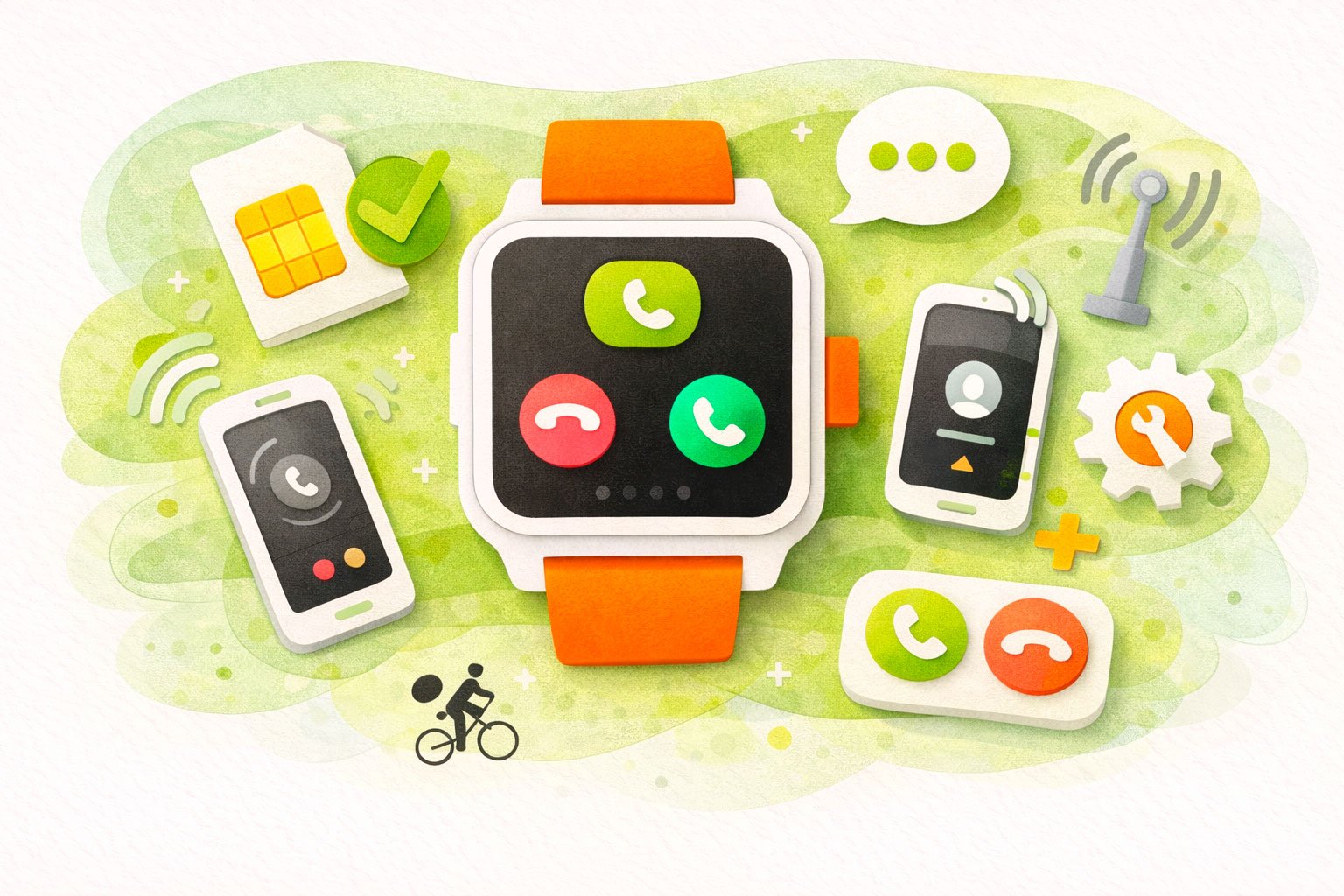
This guide explains how to connect your smartwatch to your phone so you can make and receive calls directly from your wrist. You’ll learn how Bluetooth pairing works, which permissions to allow, and how to enable call audio properly. We’ll also cover common setup mistakes and simple tips to keep call quality clear and connection stable during everyday use.
Step-by-step guide to connecting your smartwatch for calls.
Step 1 — Install the App
Download the Runmefit app from your app store. This app is used to pair and manage your smartwatch.
Step 2 — Turn On Bluetooth
Enable Bluetooth on your phone. Keep your watch nearby during setup.
Step 3 — Pair the Watch in the App
Open the Runmefit app and search for your device (for example, “GTR3”). Select it and complete the binding process inside the app.
Step 4 — Enable Call Function via Phone Settings
Go to your phone’s Bluetooth settings. Find the watch (e.g., GTR3) in the device list and tap it. Make sure call audio and connection permissions are enabled.
Step 5 — Confirm Connection
Check inside the app that the watch shows as connected. If not, try reconnecting from the Bluetooth menu.
Step 6 — Start Using Call Features
Once connected, you can answer incoming calls and make calls directly from your smartwatch.
